

외국인 성도·참석자를 위한 실시간 통역 자막
다국어 예배, 선교 집회, 국제 세미나, 온라인 방송 송출 화면에 그대로 얹어 사용할 수 있습니다.
사용 중인 컴퓨터에 맞는 버전을 선택하세요
다운로드 후 설치하고, 프로그램을 실행해 계정을 만들면 바로 사용할 수 있습니다. 가입 시 무료 4시간이 제공됩니다.
Download LiveCaption for Windows or Mac. Mac users: choose Apple Silicon (M1–M4) or Intel — check Apple menu → About This Mac → Chip/Processor.
업데이트 내역
설치된 프로그램은 실행할 때 새 버전이 있으면 알려 드립니다. 위 버튼으로 받아 다시 설치하면 설정은 그대로 유지됩니다.
- 더 정확한 통역 자막 — 말하지 않은 내용(예: 하지 않은 “첫째·둘째” 같은 표현)이 자막에 들어가지 않도록 번역 방식을 개선했습니다. 들린 말만 옮기고, 문법상 꼭 필요한 한두 단어만 보충합니다. 이 개선은 이전 버전에도 자동으로 적용됩니다.
- 교정 범위 축소 — 음성인식 교정은 잘못 들린 단어, 띄어쓰기, 숫자·성경 장절 표기만 고칩니다. 주제·용어를 입력하지 않으면 인식된 그대로 표시합니다.
- 새 옵션 — 주제·용어 창의 “주제·용어가 없어도 음성인식 오류 교정”을 켜면 입력 없이도 숫자·띄어쓰기 등을 교정합니다.
- 슬라이드쇼 중에도 자막 표시 — Mac에서 Keynote·PowerPoint 슬라이드쇼(전체 화면)를 띄워도 선택한 모니터에 자막이 계속 표시됩니다.
- Mac 버전 구분 — macOS 14 이상용과 macOS 13용을 나누어 제공합니다. macOS 13을 쓰신다면 위 Mac 카드의 “macOS 13 사용 중이면 여기서 받기”로 받으세요.
- 최신 macOS 호환성을 위해 화면 구성 요소(Qt)를 최신 버전으로 업데이트
- 참고 문서 불러오기 — 설교 원고·발표 대본·슬라이드(PDF, Word, 텍스트)를 불러오면 주제와 주요 용어가 자동으로 채워집니다.
- 원고 대조 교정 — 원고대로 읽는 부분은 원고와 같은 표현으로 자막을 바로잡고, 원고에서 벗어난 말은 말한 그대로 둡니다. 원고는 이 컴퓨터에만 보관됩니다.
- 같은 언어 자막 — 한국어를 한국어 자막으로 송출할 때 요약 없이 말한 그대로, 잘못 인식된 부분만 고쳐 보여 줍니다.
- 숫자 표기 정확도 개선 — “삼 분기”는 3분기로, 성경 장·절은 숫자로 표시하고, 애매한 표현은 바꾸지 않습니다.
- 여러 모니터 동시 송출 — 기본은 모니터 한 대를 선택하고(송출 중에도 바로 전환), 필요하면 “여러 모니터에 동시 송출”로 프로젝터·TV 등에 함께 띄울 수 있습니다.
- 모니터를 이름과 해상도로 기억해, 케이블을 다시 꽂아도 같은 모니터로 송출합니다.
- 주제·용어 입력(선택) — 사람·장소·단체 이름과 전문 용어를 입력하면 더 정확하게 인식하고, 잘못 들린 말을 문맥에 맞게 교정합니다. 송출 중에도 바꿀 수 있습니다.
- 자막이 뜨기까지 걸리는 시간 단축, 한국어 숫자 표기 개선
- 노트북·고해상도 화면에서 프로그램 창이 화면을 벗어나지 않도록 개선, 상단에 홈페이지 버튼 추가
- Windows에서 로그인 시 “Permission denied” 오류가 나던 문제 수정
- LiveCaption 최초 공개 버전입니다. 새 기능과 오류 수정이 반영된 최신 버전 사용을 권장합니다.
설치는 1분이면 충분합니다
Windows 설치
내려받은 LiveCaption-Setup.exe를 실행합니다. “Windows의 PC 보호” 파란 창이 뜨면 추가 정보 → 실행을 누르세요. 설치 후 바탕화면·시작 메뉴에 LiveCaption 아이콘이 생깁니다.
Mac 설치
내려받은 .dmg를 열고 LiveCaption 아이콘을 Applications 폴더로 끌어 넣습니다. 처음 실행 시 경고가 뜨면 시스템 설정 → 개인정보 보호 및 보안에서 “확인 없이 열기”를 누르고, 마이크 접근을 허용하세요.
로그인 & 시작
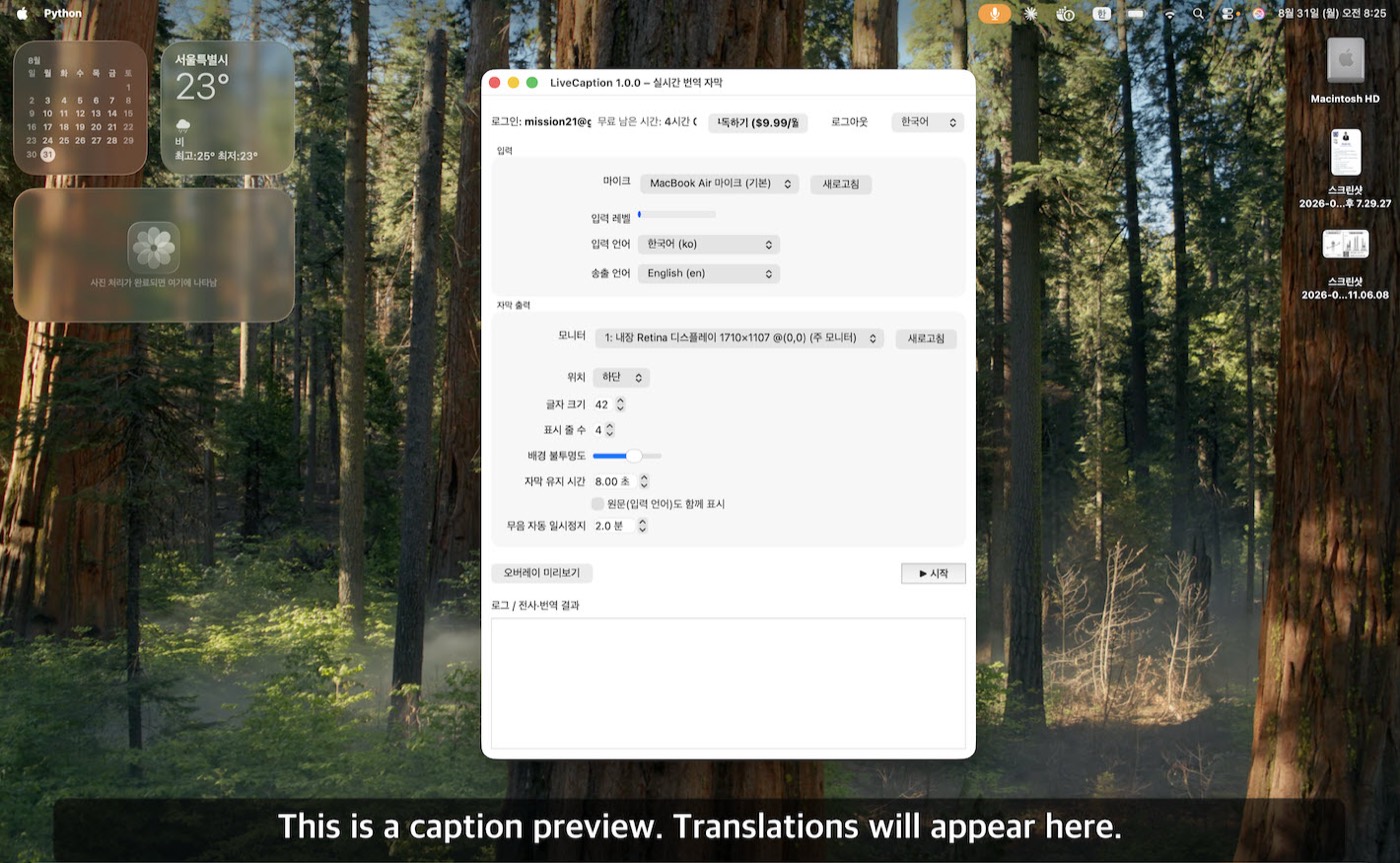
프로그램을 실행하고 Google 계정 또는 이메일로 가입·로그인합니다. 마이크, 입력 언어, 송출 언어, 자막을 표시할 모니터를 고른 뒤 ▶ 시작을 누르면 자막이 나타납니다.
먼저 무료로 써 보고 결정하세요
실제 예배 한 달 분량을 무료로 사용해 볼 수 있습니다. 시간은 자막이 실제로 동작한 시간만 차감됩니다.
무료 체험
- ✔ 총 4시간 사용
- ✔ 모든 기능 동일
- ✔ 카드 등록 불필요
월 구독
- ✔ 매월 6시간 포함 (주 1회 예배 기준 충분)
- ✔ 언제든 해지 가능
- ✔ 프로그램 안의 “구독하기” 버튼으로 결제
궁금한 점
네. 음성 인식과 번역이 클라우드에서 처리되므로 안정적인 인터넷 연결이 필요합니다.
설교자의 음성이 또렷하게 들어오는 마이크면 됩니다. 음향 콘솔의 출력을 PC 오디오 입력으로 연결하면 가장 정확합니다.
상단/하단 위치, 글자 크기, 줄 수, 배경 투명도, 원문 함께 표시 여부를 모두 조절할 수 있습니다.
프로그램에서 안내가 뜨며, “구독하기”를 누르면 브라우저에서 카드 결제 후 바로 이어서 사용할 수 있습니다.
Speak, and captions appear — translated
Sermons, lectures, and services transcribed and translated live on screen
LiveCaption listens to your microphone, transcribes and translates speech with AI in about a second, and overlays captions on the monitor (or streaming screen) you choose. No extra equipment — one PC and a microphone. Supports 13 languages including Korean → English.
Live interpretation captions for international audiences
Multilingual services, mission conferences, international seminars, and live-stream overlays.
Choose the version for your computer
Install, run, create an account — and you are captioning. Every account starts with 4 free hours.
What’s new
The app tells you when a new version is available. Download it above and reinstall — your settings are kept.
- More faithful interpretation — captions no longer add things the speaker did not say (such as an unspoken “first… second…”). Only what was heard is translated, with at most a word or two added where grammar requires. This improvement also applies to earlier versions automatically.
- Narrower correction — recognition correction now fixes only misheard words, spacing, and number or Bible reference formatting. Without a topic or terms, the source text is shown exactly as recognized.
- New option — turn on “Correct recognition errors even without topic or terms” in the Topic & terms window to fix numbers and spacing without entering anything.
- Captions during slideshows — on Mac, captions now stay visible on the selected monitor while a Keynote or PowerPoint slideshow is running full screen.
- Separate Mac builds — one for macOS 14 and later, one for macOS 13. On macOS 13, use the “On macOS 13? Download here” link under the Mac cards above.
- Updated the UI framework (Qt) for compatibility with the latest macOS
- Load a reference document — open a sermon manuscript, script, or slides (PDF, Word, text) and the topic and key terms are filled in automatically.
- Manuscript matching — when the speaker reads from the manuscript, captions follow its exact wording; anything said off-script stays as spoken. The manuscript stays on your computer.
- Same-language captions — Korean-to-Korean captions now show exactly what was said, with only recognition errors fixed (no summarizing).
- Better number formatting — chapters, verses, and units are shown as digits; ambiguous words are left as spoken.
- Multiple monitors — pick one monitor (switch instantly while live), or turn on “Show on multiple monitors” to caption a projector and TV at the same time.
- Monitors are remembered by name and resolution, so re-plugging cables keeps the same screen.
- Topic & key terms (optional) — enter names and technical terms for more accurate recognition and context-aware correction. Can be changed while live.
- Faster captions and improved Korean number formatting
- The window now fits small and high-DPI screens; added a Website button
- Fixed a “Permission denied” login error on Windows
- The first public release of LiveCaption. We recommend the latest version, which includes new features and fixes.
Installed in about a minute
Windows
Run LiveCaption-Setup.exe. If the blue “Windows protected your PC” screen appears, click More info → Run anyway. A LiveCaption icon appears on your desktop and Start menu.
Mac
Open the downloaded .dmg and drag LiveCaption into Applications. The app is notarized by Apple, so it opens right away — just allow microphone access when asked.
Sign in & start
Launch the app and sign in with Google or email. Choose your microphone, spoken language, caption language, and target monitor, then press ▶ Start.
Try it free, decide later
Enough free time for a month of weekly services. Only time with the captions actually running is counted.
Free trial
- ✔ 4 hours total
- ✔ Every feature included
- ✔ No card required
Monthly
- ✔ 6 hours per month (plenty for one weekly service)
- ✔ Cancel anytime
- ✔ Subscribe from inside the app
Common questions
Yes — recognition and translation run in the cloud, so a stable connection is required.
Any mic that picks up the speaker clearly. Feeding your mixing console output into the PC audio input works best.
Top/bottom position, font size, line count, background opacity, and showing the original text are all adjustable.
The app lets you know; press “Subscribe”, pay in your browser, and continue right away.
Questions & support
Reach out anytime — before or after you install.